|
Design
Flow
|
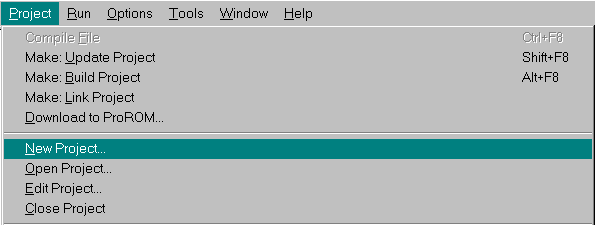
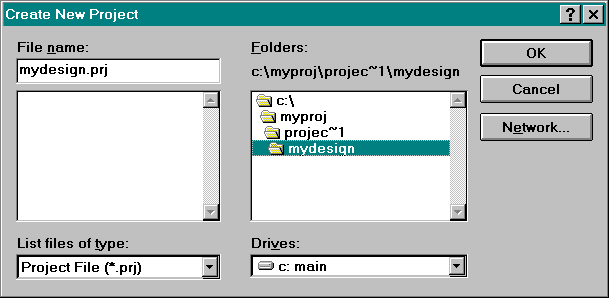
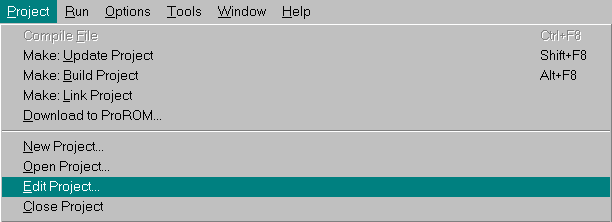
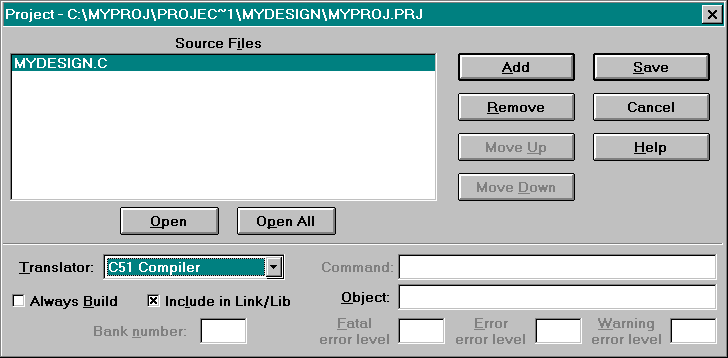
Setting Up Your ProjectNow that we've finished writing the application program, let's set up the Keil project.From the Project menu, click on New Project. Select the location of your Project Registry, and enter a name for your Keil project. Click OK when complete. Now let's add our 'C' source file to the project. Select Project and then Edit Project from the menu. Once the dialog box appears, click Add and select the source file, mydesign.c. Click Save when finished.
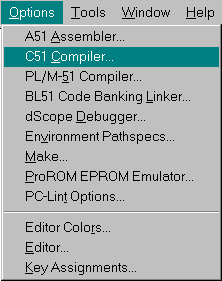
Setting Up the 'C' Compiler OptionsTo set options for the 'C' compiler, click the Options menu item and select C51 Compiler....
Object File OptionsTo set options for the object file, select the Object tab from the dialog box. For improved debugging visibility, choose the Include debug information and the Include extended debug information options. Do not click the OK button just yet.
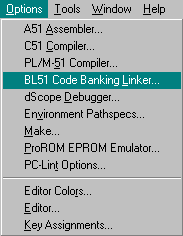
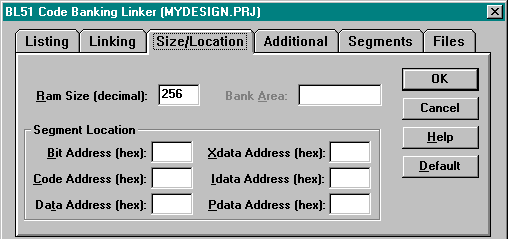
Chip OptionsTo set options for device-specific compiler optimization, choose the Chip tab from the dialog box. The 8032 "Turbo" microcontroller has two data pointers, similar to the Dallas 80C320 devices. Choose 2: Dallas (MODDP2) from the selection drop list. Click OK when finished. Linker OptionsThe 8032 "Turbo" microcontroller embedded within the Triscend E5 device has 256 bytes of RAM, just like other 8052/8032 derivates. By default however, the Keil linker uses 128 bytes. To change these setting, select the Options menu item, then BL51 Code Banking Linker.... In the resulting dialog box, click the Size/Location tab. Update the Ram Size (decimal): setting from 128 to 256. Click OK when finished.
|